A mailbox containing thousands of old messages and spam can consume a surprising amount of hosting space and file usage. On most cPanel servers, each email is stored as a separate file and generally uses one inode. A mailbox with 30,000 messages can therefore use approximately 30,000 file entries.
Excessive email can increase disk usage and make account backups, mailbox searches, migrations, file scans, and other hosting operations take longer.
This guide explains how to download the messages in your Inbox to your computer with Mozilla Thunderbird using POP3. After the messages are downloaded, you can use cPanel’s Email Disk Usage tool to permanently remove old mail and spam from the server.
Before You Begin
You will need:
-
Your complete email address
-
Your email account password
-
Access to your cPanel account
-
A Windows, Mac, or Linux computer
-
Enough available computer storage for your email
POP3 downloads messages from your Inbox to Thunderbird. It does not download server folders such as Sent, Drafts, Spam, Trash, or custom folders. Those folders can be reviewed and cleaned directly through cPanel.
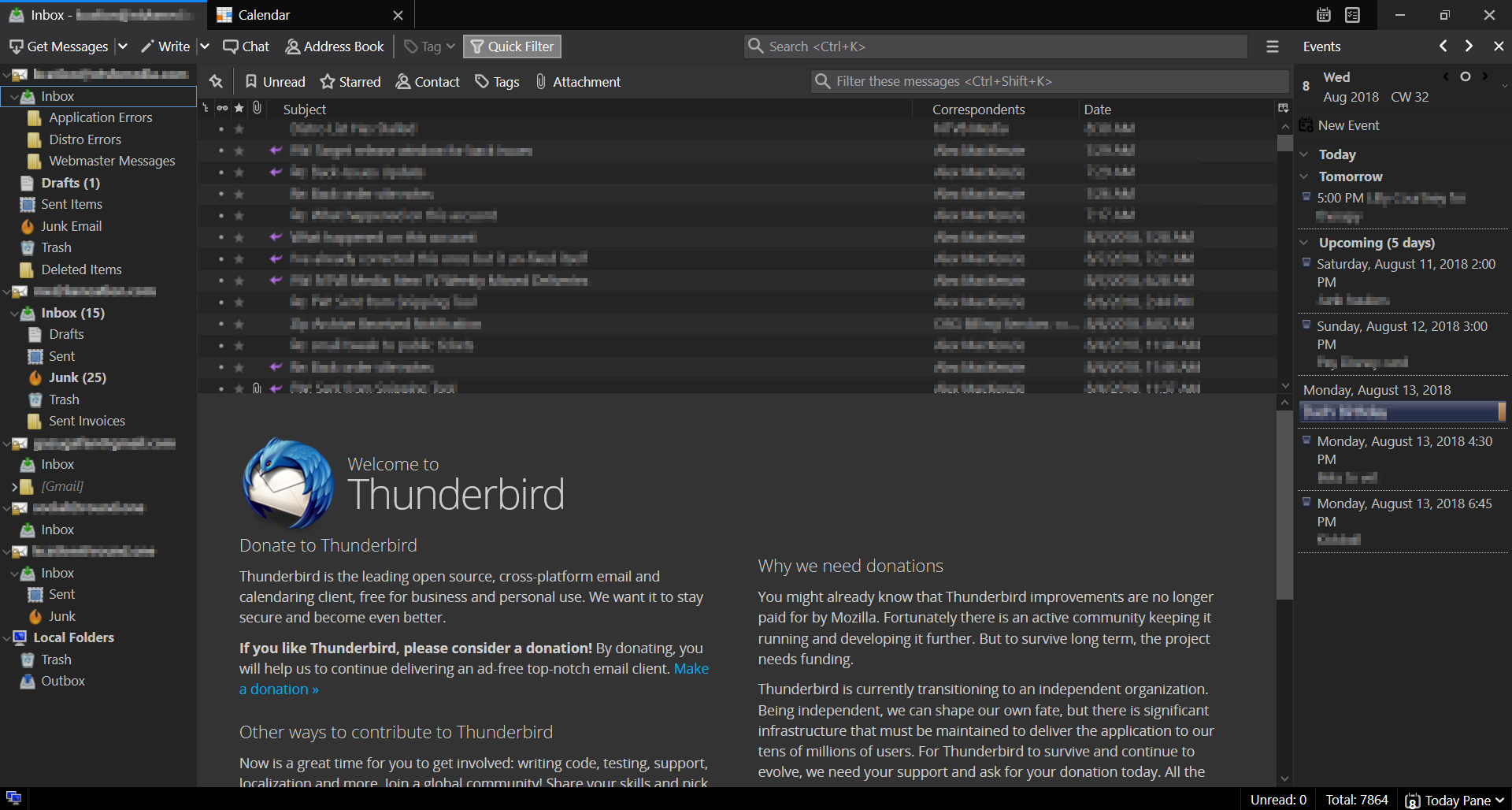
Step 1: Install Mozilla Thunderbird
Download and install Thunderbird from the official website:
Open Thunderbird after the installation is complete.
Step 2: Find Your Email Settings in cPanel
Log in to cPanel and open:
Email Accounts
Locate the email address you want to download and click:
Connect Devices
Scroll to the Mail Client Manual Settings section. Use the recommended Secure SSL/TLS settings.
The settings will normally include:
-
Username: Your complete email address
-
Password: Your email account password
-
Incoming server: The server shown in cPanel
-
POP3 port: 995
-
Outgoing server: The server shown in cPanel
-
SMTP port: 465
-
Security: SSL/TLS
Use the exact server names displayed in your cPanel account. They may be different from your domain name. cPanel recommends using its displayed Secure SSL/TLS settings.
Step 3: Add the Email Account to Thunderbird
In Thunderbird, select:
Account Settings → Account Actions → Add Mail Account
Enter:
-
Your name
-
Your complete email address
-
Your email password
Click Continue.
Thunderbird will attempt to locate the email settings automatically. Select POP3 instead of IMAP and click Done.
If Thunderbird cannot find the correct settings, select Manual Configuration and enter the Secure SSL/TLS settings displayed under Connect Devices in cPanel. Mozilla confirms that POP3 must be selected while creating the account because an existing Thunderbird account cannot simply be changed from IMAP to POP later.
Step 4: Download the Email
Select the new email account in Thunderbird and click:
Get Messages
Thunderbird will begin downloading the messages stored in the server Inbox. A large mailbox may take longer to download.
Keep Thunderbird open until new messages stop appearing. You can click Get Messages again to check for anything remaining.
Your downloaded Inbox messages will remain available in Thunderbird on that computer. POP3 does not download Sent, Drafts, Spam, Trash, or other server folders.
Step 5: Open Email Disk Usage in cPanel
After Thunderbird finishes downloading the Inbox, log back in to cPanel and open:
Email Disk Usage
You can also reach this area through:
Email Accounts → Manage → Free Up Email Storage
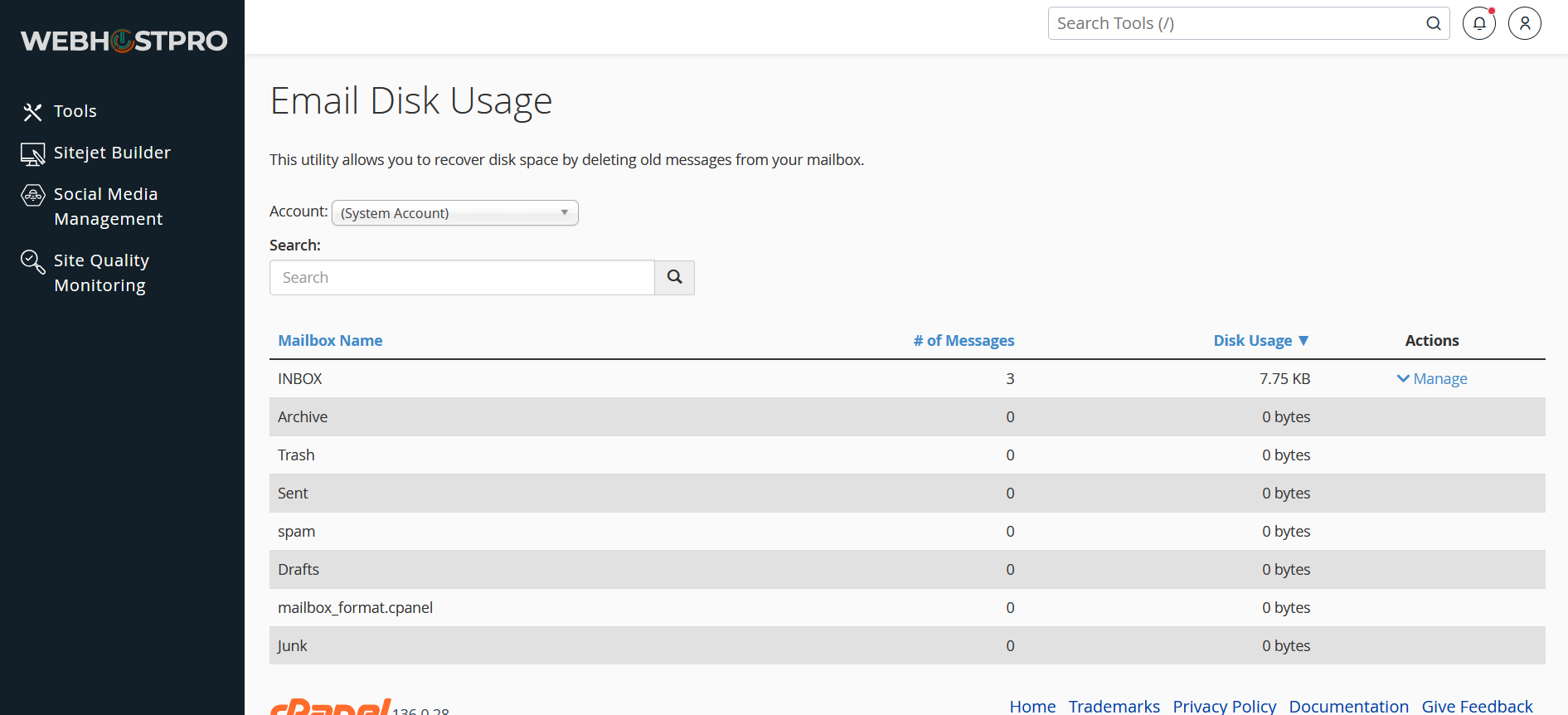
Select the email address you downloaded. cPanel will display each mailbox folder, the number of messages it contains, and the amount of storage it uses.
Common folders include:
-
Inbox
-
Sent
-
Drafts
-
Junk or Spam
-
Trash
-
Archive
-
Custom folders
Step 6: Permanently Delete Unneeded Server Email
Find the mailbox folder you want to clean and click Manage.
Select a removal option, then click:
Delete Permanently
Start with folders that commonly contain unnecessary email:
-
Spam or Junk
-
Trash
-
Sent
-
Drafts
-
Old Inbox messages that were downloaded to Thunderbird
Repeat the process for each folder that needs to be cleaned.
Deleted messages cannot be restored through Email Disk Usage. Only remove messages you no longer need stored on the hosting server.
Understanding the Email Disk Usage Page
The Email Disk Usage tool lets you see which email addresses and folders are consuming the most storage. cPanel allows the table to be sorted by mailbox name, message count, or disk usage.
Account
Use the Account menu to select the email address you want to review.
If the cPanel account contains several email addresses, each address must be reviewed separately.
Search
Use the search box to locate a specific mailbox or folder. This is helpful when an account contains numerous folders.
Mailbox Name
This column shows the email address or individual folder being measured.
Folder names may appear differently from how they appear in webmail. For example, Inbox, Sent, Spam, and Trash may each be listed as separate mailboxes.
Number of Messages
This shows how many messages are stored in each folder.
A folder may use a large number of file entries even when its total disk usage appears relatively small. Thousands of small spam messages can consume thousands of inodes.
Disk Usage
This shows the amount of server storage used by the mailbox or folder.
Large attachments usually cause the greatest disk usage, while large numbers of small messages can cause high inode or file usage.
The displayed totals may not update immediately after deletion because cPanel can temporarily cache mailbox usage information.
Email Removal Options
Click Manage next to a folder to display the available removal options.
1 Year Old or More
This permanently deletes messages that are at least one year old.
This is a useful option for cleaning an old Sent folder or removing older Inbox messages after they have been downloaded.
30 MB in Size or More
This removes messages that are 30 MB or larger.
Large email attachments can consume substantial storage. This option can free disk space quickly, although it may only remove a small number of messages.
Previously Viewed
This removes messages the server has marked as already read.
This option can remove a large amount of wanted email along with spam. Use it only when you intend to delete all previously opened messages from that folder.
All Messages
This permanently empties the selected folder.
This is usually the fastest option for:
-
Spam
-
Junk
-
Trash
-
Unneeded Drafts
Do not select All Messages for the Inbox or Sent folder unless you intend to permanently empty that entire folder.
Custom Query
A custom query gives you more control over which messages are removed.
For example:
LARGER 10M
This deletes messages larger than 10 MB.
To delete messages received before a specific date, use:
BEFORE 01-Jan-2026
The month must use its three-letter English abbreviation, such as Jan, Feb, Mar, Apr, or Dec.
Custom queries are useful when the standard one-year or 30 MB options are too limited. cPanel processes these searches using the Dovecot mailbox query format.
Why Old Email Uses So Many Inodes
An inode is a file-system record used to store information about a file or folder. cPanel may display this measurement as File Usage.
Most cPanel email accounts use the Maildir storage format, which generally stores each email as an individual file. This means:
-
1 email generally uses at least 1 inode
-
10,000 emails can use approximately 10,000 inodes
-
50,000 emails can use approximately 50,000 inodes
Additional files may also be used for folders, indexes, filters, attachments, and mailbox data.
A large number of emails can contribute to:
-
Higher hosting file usage
-
Slower account backups
-
Longer migrations
-
Slower malware and file scans
-
Larger backup files
-
Longer mailbox searches and maintenance
-
Difficulty staying within hosting storage limits
Deleting one large message may free substantial disk space. Deleting thousands of small spam messages may have a greater effect on inode usage.
Clean Your Email Every Six Months
We recommend downloading and cleaning your email at least once every six months.
A regular cleanup should include:
-
Downloading older Inbox messages with Thunderbird
-
Emptying Spam or Junk
-
Emptying Trash
-
Removing old Sent messages
-
Removing messages with large attachments
-
Reviewing unused email accounts
-
Checking cPanel disk and file usage
Regular maintenance prevents years of spam and old messages from accumulating inside your hosting account. It also keeps your mailbox and hosting account easier to manage, back up, and migrate.