WordPress is one of the most powerful and widely used website platforms in the world. Its popularity also makes it a frequent target for performance issues and security abuse, especially when sites are not properly configured.
The good news is that WordPress can be fast, stable, and secure, even for beginners, when a few best practices are followed. This guide outlines the most effective optimizations in order of impact.
If at any point you would prefer assistance, our support team is happy to help. Simply open a support ticket, and we can take care of these steps for you.
1. Keep Everything Updated (Most Important)
Outdated software is the leading cause of WordPress performance issues and security vulnerabilities.
Make sure you regularly update:
-
WordPress core
-
Themes
-
Plugins
At a minimum, updates should be applied once per month. In the App Manager, you can enable automatic updates for WordPress, plugins, and themes. This is highly recommended.
2. Use the Latest Supported PHP Version
Newer PHP versions are faster, more secure, and more efficient.
Check available PHP versions in your hosting control panel and:
-
Start with the newest supported version
-
Only downgrade if a specific plugin or theme requires it
PHP version changes usually take effect within a minute. Refresh your browser after changing versions to confirm everything loads correctly.
3. Install Essential Plugins Only
We recommend a minimal, purposeful plugin setup.
Security
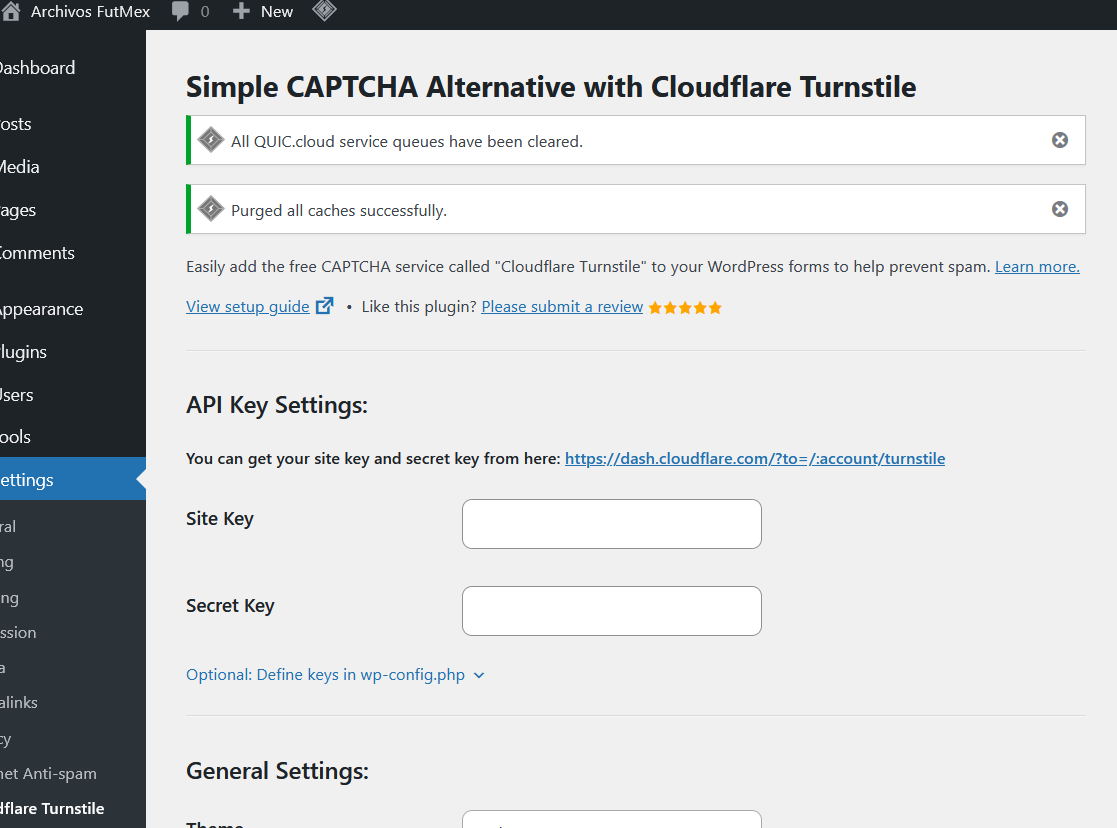
Use Simple CAPTCHA Alternative with Cloudflare Turnstile to enable:
-
Brute-force login protection
-
Bot blocking
-
Login attempt limits
Install a form plugin such as WPForms Lite and configure it to work with Cloudflare Turnstile for enhanced protection. Disable all built-in CAPTCHA options within WPForms, then enable the protection settings under the “Simple CAPTCHA Alternative with Cloudflare Turnstile” section.
This configuration ensures consistent, automated protection across all forms without requiring individual setup.
Performance
Use LiteSpeed Cache and enable the recommended default settings. This is the preferred caching solution, as it integrates with our backend optimization stack to deliver maximum performance and efficiency.
This provides:
-
Page caching, CDN.
-
Image optimization
-
File minification
-
Browser caching, Redis Object Cache.
Avoid installing multiple plugins that perform the same function.
4. Optimize Page Size and Use Lazy Loading
Large pages place unnecessary load on your server.
Best practices:
-
Break very long pages into smaller sections or multiple pages
-
Enable lazy loading for images and media
-
Limit the number of posts displayed per page (five is a common safe default)
Smaller pages load faster and use fewer server resources.
5. Avoid Using Tags Excessively
Tags are often misunderstood and rarely provide meaningful SEO benefits.
Important notes:
-
Google has stated tags are not used for ranking
-
Excessive tags can create unnecessary database load
-
Categories are usually sufficient for organization
If you remove tags, ensure categories are well-structured for visitor navigation.
6. Remove Unused Plugins and Themes
Unused plugins and themes increase attack surface and resource usage.
Recommendations:
-
Delete any plugins you are not actively using
-
Keep only your active theme and the latest default WordPress theme
-
Aim to keep total plugin count reasonably low
A lean installation is a faster, safer installation.
7. Reduce admin-ajax Usage (Advanced)
The admin-ajax process is commonly abused and can cause high CPU usage.
Disabling or limiting admin-ajax requires careful configuration. We recommend following a dedicated guide or contacting support before making changes.
8. Limit WordPress Installs Per Domain
Each WordPress installation consumes CPU and RAM resources during operation. Hosting multiple installs under a single domain can significantly increase resource usage, leading to performance degradation across all sites.
To maintain optimal speed and stability, we recommend limiting deployments to no more than 3 WordPress websites per domain on the Pro plan, and no more than 6 on the Advanced plan.
9. Keep Media Properly Compressed
Large images significantly increase load time and server usage.
Best practices:
-
Compress images before uploading when possible
-
Enable image optimization in your caching or optimization plugin
-
Avoid uploading full-resolution camera images
Well-optimized media improves both speed and user experience.
10. Disable Comments If Not Needed (Optional)
If your website does not require comments:
-
Disable comments entirely using a lightweight plugin
-
Avoid feature-heavy plugins that add unnecessary overhead
This reduces spam and server load.
11. Ensure Proper SSL Redirection (Optional)
Some themes do not automatically redirect traffic to HTTPS.
Before adding a plugin:
-
Confirm whether your site already redirects to HTTPS
-
Only install an SSL redirect plugin if needed
All modern sites should load exclusively over HTTPS.
12. Avoid Akismet on Shared Hosting (Recommended)
Akismet can block spam, but its impact on performance varies.
If you are already using Wordfence or another security solution:
-
Akismet may not be necessary
-
Consider disabling it if you experience performance issues
13. Avoid Jetpack on Shared Hosting (Recommended)
Jetpack offers many features but can significantly increase resource usage.
On shared hosting:
-
Jetpack is often unnecessary
-
It is better suited for VPS or dedicated servers
If performance matters, it is usually best to leave Jetpack disabled.
14. Disable XML-RPC (Optional but Recommended)
XML-RPC is frequently abused for spam and brute-force attacks.
If you do not use XML-RPC features, you can block it entirely by adding the following to your .htaccess file:
To allow a specific IP address:
If you are unsure whether you need XML-RPC, contact support before making changes.
15. Choose your SEO plugin wisely
#1 The SEO Framework
Very lightweight
Minimal interface
Great for performance-focused sites
#2 Rank Math SEO
Most features free
Schema
Redirects
Local SEO
For WooCommerce sites
WooCommerce SEO
XML sitemaps
Lightweight
There are many ways to optimize WordPress, but the steps above cover the most impactful actions that should be applied to every new installation.
Following these guidelines will:
-
Improve performance
-
Reduce CPU usage
-
Increase security
-
Prevent common WordPress issues
If you would like assistance implementing any of these steps, our support team is always available to help.
16. Simple Lightbox
Looking for a better way to showcase your photo galleries in WordPress? By default, WordPress often opens images on separate attachment pages, which can create a clunky user experience and interrupt visitors as they browse your content.
After testing countless gallery and lightbox plugins, we found that Simple Lightbox offers the best balance of performance, usability, and design. It is lightweight, fast, and easy to configure, while providing a polished viewing experience that feels modern and professional.
With Simple Lightbox, visitors can click any image and view it in an elegant overlay without leaving the page. Navigation is smooth, galleries are easy to browse, and the overall presentation helps keep users engaged with your content.
If you want a gallery solution that is clean, reliable, mobile-friendly, and doesn't slow down your website, Simple Lightbox is one of the best WordPress plugins available. Its lean design, excellent functionality, and seamless user experience make it a standout choice for WordPress websites of all sizes.